How do I add a Receiver to multiple Domains?
The same Receiver is often required for multiple Domains within a Project. Rather than adding the Receiver to each separate Domain, users can perform a Global Edit from within the Domain Dashboard to add the new Receiver to multiple Domains via the Receiver Assignment Wizard.
What is the Receiver Assignment Wizard?
The Receiver Assignment Wizard can be used to select a Receiver, filter to a set of Domains, and assign the Receiver to each Domain within the filtered set of Domains.
Accessing the Receiver Assignment Wizard from Domain Dashboard
-
Select a Project and Project Version within the Project Dashboard.
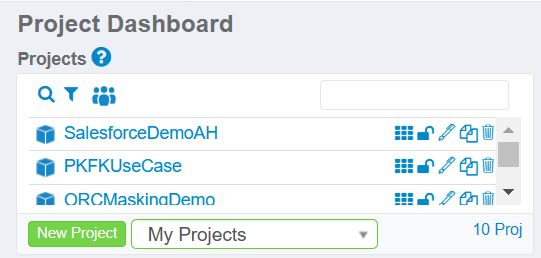
-
Next, select a Domain in the Domains pane to access the Domain Dashboard.
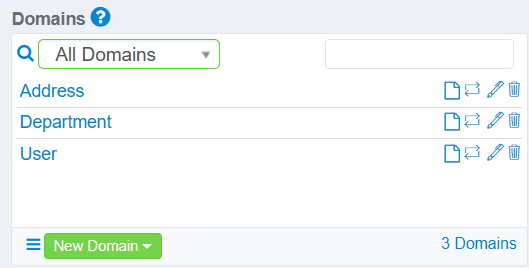
-
Expand the Global Editing Menu in the top left corner.
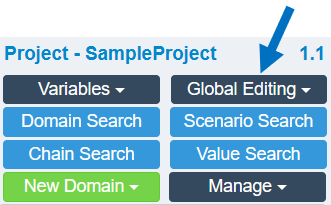
-
Select the Add a New Receiver to Multiple Domains option.
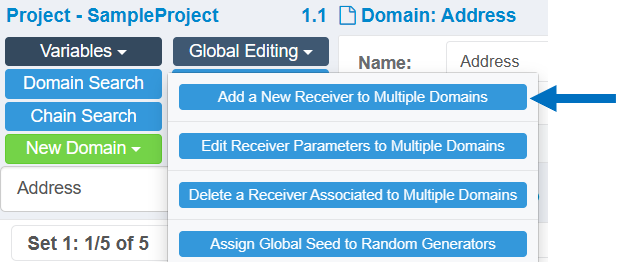
-
This will open the Receiver Assignment Wizard, which can be used to assign a Receiver to multiple Domains.
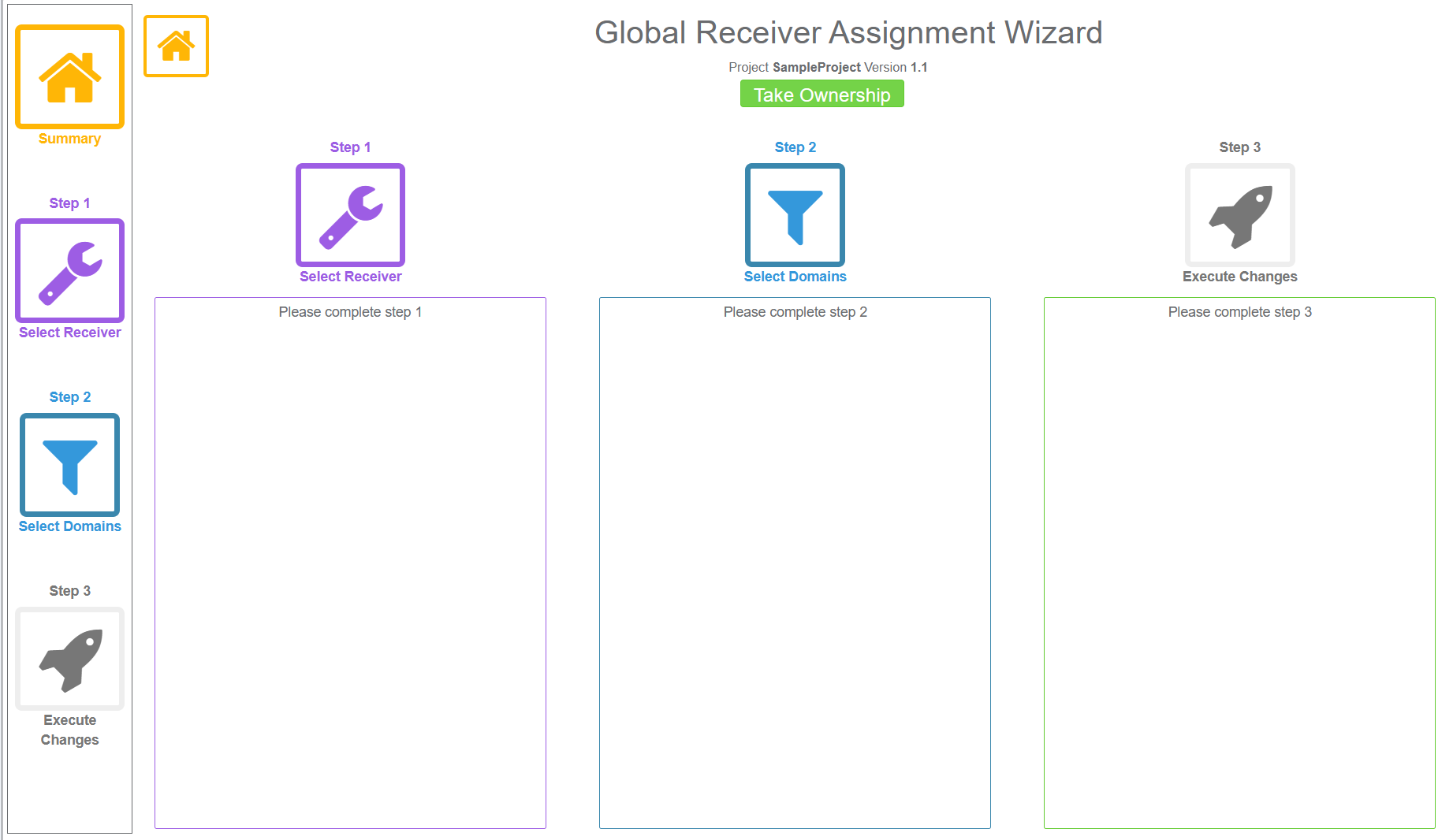
How to use the Receiver Assignment Wizard
Note: Click here to view a detailed article showing the steps below:
- Click on Take Ownership.
- Select the Receiver and make parameter changes.
- Filter to and select the Domains.
- Execute the change.
The DelimitedFileReceiver was added to the Department, User, and Address Domains in the example below.

Article Feedback: Was this helpful?
Give feedback