G-Analytics Overview - Track GenRocket Platform Usage
Discover how to effectively track and analyze usage data on the GenRocket platform with G-Analytics insights.
What is G-Analytics?
G-Analytics is designed to provide clear, role-based insights into how the GenRocket platform is being used. Whether you are monitoring organizational trends, tracking project activity, or reviewing detailed testing statistics, the dashboards present complex data in an accessible and practical format for a wide range of users.
G-Analytics offers sixteen standard dashboards, each with key data and analytics, providing a clear view of GenRocket's usage. Information is collected from GenRocket Cloud and from users' local environments via G-Repository, where test data is generated. The Project Version Usage Run Counts dashboard is shown below.

What are the Benefits of G-Analytics?
G-Analytics offers clear insight into GenRocket usage within your organization. Key benefits include:
- Track component usage patterns to gauge platform adoption.
- Monitor login activity to gauge user engagement.
- Identify high-usage teams and active testing areas by project activity.
- Leverage usage data to enhance test coverage, reduce cycle time, and boost productivity.
- Review version usage to ensure teams are aligned with current project assets.
- Assess individual user activity to guide enablement and training efforts.
- Track actions performed for platform users (e.g., user creation, user updates, password changes).
What are the Key Features of G-Analytics?
- View usage and runtime statistics
- Near real-time data (updates approximately every 60 seconds)
- Reports are designed to be intuitive and user-friendly.
- Export reporting dashboards and individual reports as CSV files.
- Multiple reporting dashboards and reports are available (high-level to granular).
Common Use Cases
- Monitoring Platform Adoption - Track how frequently GenRocket is used across departments or teams and identify trends in platform adoption over time.
- Project Performance Tracking - Review and use test data generation statistics to assess the progress and activity levels of ongoing projects, enabling more effective resource allocation.
- User Activity Auditing - Examine user activity to ensure data generation and usage comply with organizational policies and identify any unusual patterns.
- Optimizing Test Coverage - Analyze runtime statistics to identify gaps or redundancies in test data usage, supporting improved coverage and efficiency.
Available Reporting Dashboards
Available reporting dashboards are divided into categories and listed below. Some dashboard reports may depend on selections made in other reports. For example, selecting a project in one report may determine which project versions are shown in another report within the same dashboard. Some reporting dashboards also require G-Repository Server.
General
- Organization Component Counts Dashboard
- Organization Current Consumption
- Organization Project Summary Dashboard
- Project Version Usage Run Counts Dashboard (G-Repository Required)
Run Activity
- Organization Scenario Run Activity Dashboard (G-Repository Required)
- Server Usage Run Activity (G-Repository Required)
- User Usage Run Activity Dashboard (G-Repository Required)
Trend (Monthly)
- Standard Projects Usage Monthly Trend
- IPM Projects Usage Monthly Trend
- Micro Projects Usage Monthly Trend
- Projects Usage Monthly Trend
Trend (Quarterly)
- IPM Projects Usage Quarterly Trend
- Micro Projects Usage Quarterly Trend
- Standard Projects Usage Quarterly Trend
User Audits
Who can use G-Analytics?
- All GenRocket users can view G-Analytics.
- Dashboard visibility is determined by the assigned user role.
- Only Organization Admins can see all seven dashboards.
- General Users do not currently have access to any dashboards.
What are the G-Analytics Roles?
| Role | Permissions |
|---|---|
| Organization Admin Role | Users assigned this role can view all sixteen standard dashboards in G-Analytics |
| DataConnect Admin Role | Users assigned this role can view additional DataConnect reporting dashboards. |
| General User Role | Users assigned this role can access the G-Analytics section, but do not have access to any reporting dashboards at this time. |
How is Data Collected for Reports?
Data displayed in G-Analytics Reports are collected from two sources:
- GenRocket Cloud - Activity is automatically collected with no additional setup required. This includes Project Setup, Domains, Attributes, etc.
- Local Environment Usage Statistics - Runtime activities, such as Scenario runs in the client environment, are collected in GenRocket Cloud via G-Repository. G-Repository must be installed and active (connected to GenRocket Cloud) to send statistics from the local environment.
Prerequisites for G-Analytics
-
G-Repository is highly recommended for accurate data reporting. It is required for specific dashboards that report on statistics from the local environment.
- Without G-Repository, these dashboards will still be viewable, but their statistics will not accurately reflect local usage.
- If G-Repository is active, data flows seamlessly into the reports listed below, ensuring accurate and insightful analytics.
- Organization Scenario Run Activity
- Project Version Usage Run Counts
- User Usage Run Activity
- Organization Admin Role - to see available sixteen standard reporting dashboards.
How to Access G-Analytics
- Select the Organization Menu in the upper-right corner of the application.
- Select G-Analytics from the menu.

- The G-Analytics Dashboard provides access to multiple dashboards, each containing several reports with data connected to user selections.

Reporting Dashboard Menus
The G-Analytics Dashboard includes up to four menus. Some menus are only displayed for specific reporting dashboards.

| Menu | Description |
|---|---|
| Dashboard Menu | Choose one of the seven available reporting dashboards to view its data and corresponding reports. |
| Range Menu | Select a pre-defined range or enter a custom date range for the selected dashboard. |
| Color Palette Menu | Select a color theme for the dashboard to change its appearance and aid visual distinction. |
| Role Menu | Choose a user role for G-Analytics. The selected role controls which dashboards and options are visible. |
Report Options
Reports within a dashboard can contain the following options:

| Icon | Description |
|---|---|
 |
Download Dashboard Report. Exports the dashboard report as a CSV file. Each dashboard section is treated as a separate report. The exported details reflect only the specific report chosen. |
 |
Highlights the linked parent within the reports. Example: Selecting this icon in the Project Versions report would highlight the Project Report, since it is the parent report. |
 |
Highlights the linked children reports within the dashboard. Example: Selecting this icon in a Project report would highlight the Project Versions report, since it is a child report. A report may have multiple child reports. |
 |
Change the order in which items are displayed within a Report column. |
How to View and Use Reporting Dashboards
The G-Analytics Dashboard will update automatically as selections are made. Complete the steps below:
- Select a Role (if more than one is assigned). The Role determines available dashboards.
- Select a Reporting Dashboard to view.
- Select a Report Range (e.g., 1 Week, 1 Month) or enter a Custom Range. Not all reports have this option.
- (Optional) Select Color Palette. Changes the color and look of the G-Analytics Dashboard.

- Select an item in a report to see any related information. For example, when viewing the Project Version Usage Run Counts report:
- If more than one organization is present in the report, one will need to be selected.
- Select a Project.
- Select a Project Version.
- Displayed Component Counts will be for the selected Project and Project Version.

- To locate a specific item in the report, such as Projects or Components, use the Search bar. Any text matching what is entered will be displayed.

Reporting Dashboards (In Detail)
The following section provides more details and a preview of each available reporting dashboard.
Organization Component Counts Dashboard
Displays a summary count of all organization components for each accessible organization, including Projects, Project Versions, Domains, Scenarios, Scenario Chains, Scenario Chain Sets, G-Cases, G-Rules, G-Queries, Stories, and Epics.

This dashboard contains one report:
| # | Report | Description |
|---|---|---|
| 1 | Organization Components Usage Count | Shows all the accessible organizations and their component usage counts. |
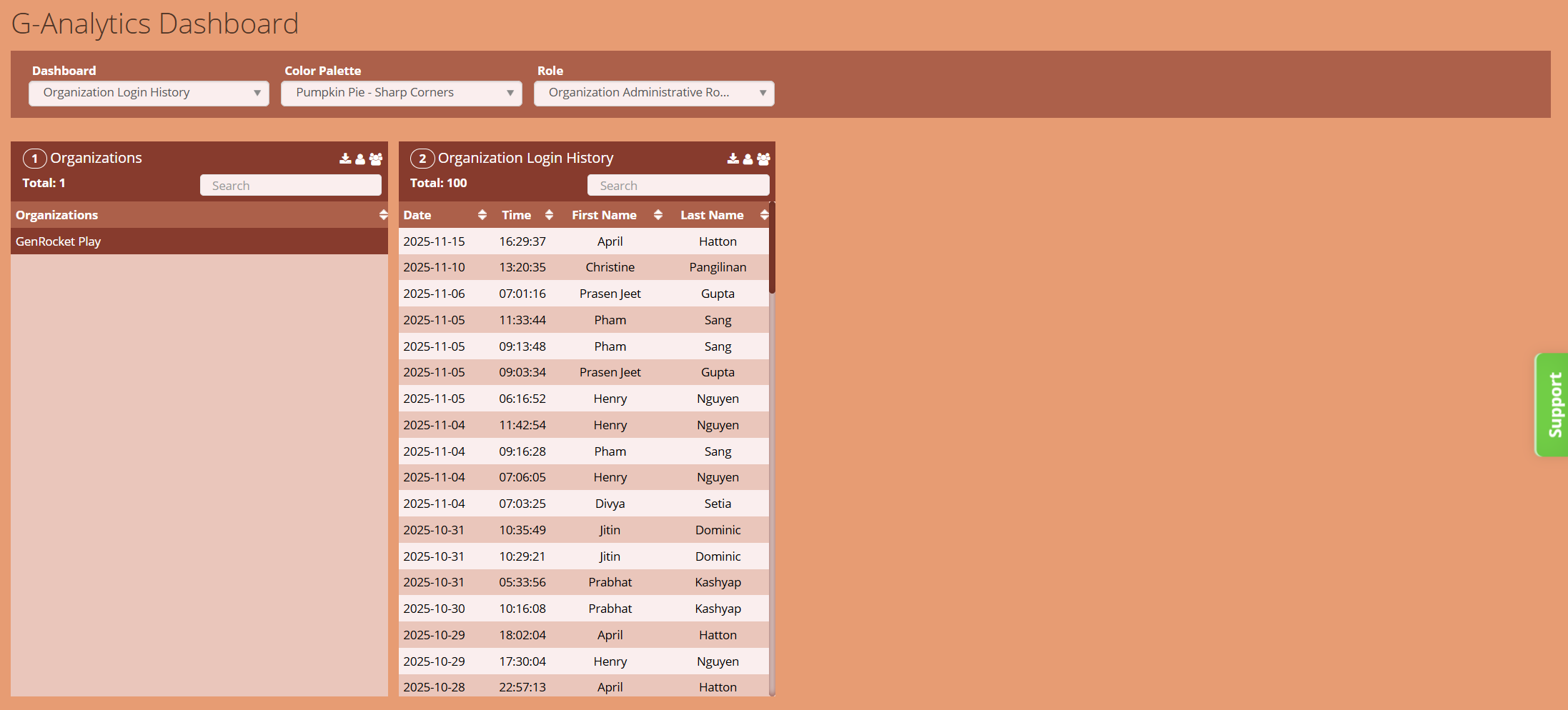
Displays the 100 most recent logins for a selected organization. Displayed data includes each user's login date, login time, first name, and last name within the selected organization.

This dashboard contains two reports:
| # | Report | Description |
|---|---|---|
| 1 | Organizations | Shows the accessible organizations. |
| 2 | Organization Login History | Lists the 100 most recent logins for the selected organization. |
Organization Current Consumption
Displays current consumption and activity per Project Type for each accessible organization over a selected range, including Project Type, Project Version, Domain, and Attribute Consumption. Users can also view usage and runtime activity based on report selections.

The dashboard contains nine dashboards
| # | Report | Description |
|---|---|---|
| 1 | Organizations | Shows the accessible organizations. |
| 2 | Project Type Consumption |
Shows the three available project types: Standard, Micro, and IPM. For each project type, it displays:
|
| 3 | Project/User Runtime Activity |
Provides a summary of user activity and runtime activity by project version. For each project version, it displays:
|
| 4 | Project Version Consumption by Project |
Shows the list of projects in the selected organization. For each project, displays project version consumed vs. limit capacity.
|
| 5 | Project Version User Usage Activity |
Shows a list of users with their daily activity counts for the selected project version. For each user, the report displays:
|
| 6 | Domain Consumption by Project Version |
Shows the list of Project Versions for the selected Project. For each Project Version, displays domains consumed versus the domain limit.
|
| 7 | Project Version User Run Activity |
Shows a list of users with their runtime activity for the selected Project Version. For each user, it displays:
|
| 8 | Attribute Consumption by Domain | |
| 9 | Project Version Server Run Activity |
Shows a list of servers with their runtime activity for the selected Project Version. For each server, it displays:
|
Organization Project Summary Dashboard
Displays each accessible organization and the component usage counts for each project within that organization. The displayed data includes the numbers of Project Versions, Domains, Scenarios, Scenario Chain Sets, G-Cases, G-Rules, G-Queries, Stories, and Epics.

This dashboard contains two reports:
| # | Report | Description |
|---|---|---|
| 1 | Organizations | Shows the accessible organizations. |
| 2 | Project Components Usage Count | Component usage counts of each project for a selected Organization. |
Project Version Usage Run Counts Dashboard (G-Repository Required)
For a selected organization and date range, it displays the last-used and run statistics for each Project, Project Version, and Project Version Component.

This dashboard contains four reports:
| # | Report | Description |
|---|---|---|
| 1 | Organization Last Used | Shows organizations and their 'Last Used' date within the selected date range. |
| 2 | Project Last Used Last Run | Last used and run date of all projects for a selected organization. |
| 3 | Project Version Last Used Last Run | The last used and run dates for a selected project version. |
| 4 | Project Version Component Counts | Component usage counts of the selected project version. |
Organization Scenario Run Activity Dashboard (G-Repository Required)
For a selected organization and data range, the dashboard displays each Project that ran a Scenario, along with the most recent run data for each.

This dashboard contains three reports:
| # | Report | Description |
|---|---|---|
| 1 | Organization Last Used | Shows available organizations and their 'Last Used' date within the selected date range. |
| 2 | Org Projects Scenario Runs | Displays Projects of a selected organization that had a Scenario run, and how many times each project has been run. |
| 3 | Org Projects Last Run Date | Lists the last run date and time for all projects of the selected organization within the selected date range. - showing the project name, date, and time. |
Server Usage Run Activity (G-Repository Required)
For a selected organization and date range, the dashboard displays server usage activity, including Server Last Run Dates, Project Scenario Runs, Project Version Scenario Runs, and Server Scenario Runs.

This dashboard contains five reports:
| # | Report | Description |
|---|---|---|
| 1 | Organization Last Used | Shows available organizations and their 'Last Used' date within the selected date range. |
| 2 | Scenario Last Run Activity | Displays all servers' last run activity within the selected date range. |
| 3 | Server Projects Scenario Runs | Lists the projects of a selected organization and server. The report shows the number of times each project has been run within the selected date range. |
| 4 | Server Project Versions Scenario Runs | Lists the project versions of a selected organization and server. The report shows the number of times each project version has been run within the selected date range. |
| 5 | Sever Scenario Runs Count | Lists the scenarios of a selected organization and server. The report shows the number of times each scenario has been run within the selected date range |
User Usage Run Activity Dashboard (G-Repository Required)
Displays a list of users and their total user counts for the selected organization over the specified data range. Activity information is displayed for each user, including their name, last used, and last run information.

This dashboard contains three reports:
| # | Report | Description |
|---|---|---|
| 1 | Organization Last Used | Shows available organizations and their 'Last Used' date within the selected date range. |
| 2 | Users Last Used/Last Run Activity | Shows all users' last used and last run dates for the selected organization. |
| 3 | User Projects Scenario Runs | Shows projects of a selected organization and how many times each project has been run by the selected user. |
Monthly Trend Reports (Standard, Micro, IPM)
Monthly trend reports show the number purchased vs. used Projects for a selected Project Type (Standard, Micro, or IPM) over a selected range. Available range options are 3, 6, 9, and 12 months. Monthly trend reports include:
- Standard Projects Usage Monthly Trend
- IPM Projects Usage Monthly Trend
- Micro Projects Usage Monthly Trend

Projects Usage Monthly Trend Report

Quarterly Trend Reports (Standard, Micro, and IPM)
- Standard Projects Usage Quarterly Trend
- IPM Projects Usage Quarterly Trend
- Micro Projects Usage Quarterly Trend

Audit Trail Dashboard
Displays auditable actions performed over a selected period of time (e.g., 1 day, week, month). This report shows each Actor/User, Action taken, Target User, Timestamp, and the Actor/User Address (i.e., IP Address). G-Repository is not required for this report. Tracked actions include:
- Org Admin Update User
- Org Admin Create User
- Org Admin Enable User
- Org Admin Disable User
- User Changes Their Password

| # | Report | Description |
|---|---|---|
| 1 | Organizations | Shows the accessible organizations. |
| 2 | Audit Trail | Shows each action an Actor/User has taken within the GenRocket web platform, what action was performed, what user the action was performed for, timestamp (date and time) information, and the Actor/User's IP address information. |
Organization Login History Dashboard
| # | Report | Description |
|---|---|---|
| 1 | Organizations | Shows the accessible organizations. |
| 2 | Organization Login History | Lists the 100 most recent logins for the selected organization. |
Article Feedback: Was this helpful?
Give feedback