UDA-Generate Overview
UDA-Generate can be used to generate synthetic documents, images, and text from blank or redacted templates — at scale, with full control over scenarios and variants. Combines structured and unstructured data into a template to create large volumes of PDF documents containing synthetic test data. It provides the following benefits:
- Unlimited volume on demand
- Positive and negative test scenarios
- Edge cases that don't exist in production

Supported UDA-Generate Formats
- Digital PDFs and Images - e.g., Forms, Reports, Invoices, Bank Statements, etc.
- Other formats (e.g., voice) to be supported at a later time.
Benefits of UDA-Generate
- Protect Sensitive Data by generating privacy-compliant, realistic PDFs.
- Speed Up Testing by generating unstructured test data quickly without data cleanup.
- Improve Coverage by simulating diverse formats to test more scenarios and edge cases.
- Enable Safe Sharing by securely sharing synthetic unstructured data to reduce risk.
- Support AI/Automation by using synthetic data to improve OCR accuracy and reduce bias.
- Generate Large Volumes by using one template for all PDF testing scenarios.
- Scale across CI/CD pipelines
How Does UDA-Generate Work?
- Model - Users upload a PDF source file containing unstructured data, which is used to create a customizable template. The template is exported and used to model their Project.
- Design - Users design their test data by assigning different Generators, adjusting parameters, and setting up G-Cases (volume and variety).
- Deploy - Users download the necessary files and generate their PDF documents using GenRocket Runtime, an API call, or script (depends on how GenRocket is deployed).
- Manage - Users create new versions as needed when the source document changes so that these changes are reflected in testing.
Sample Consent Form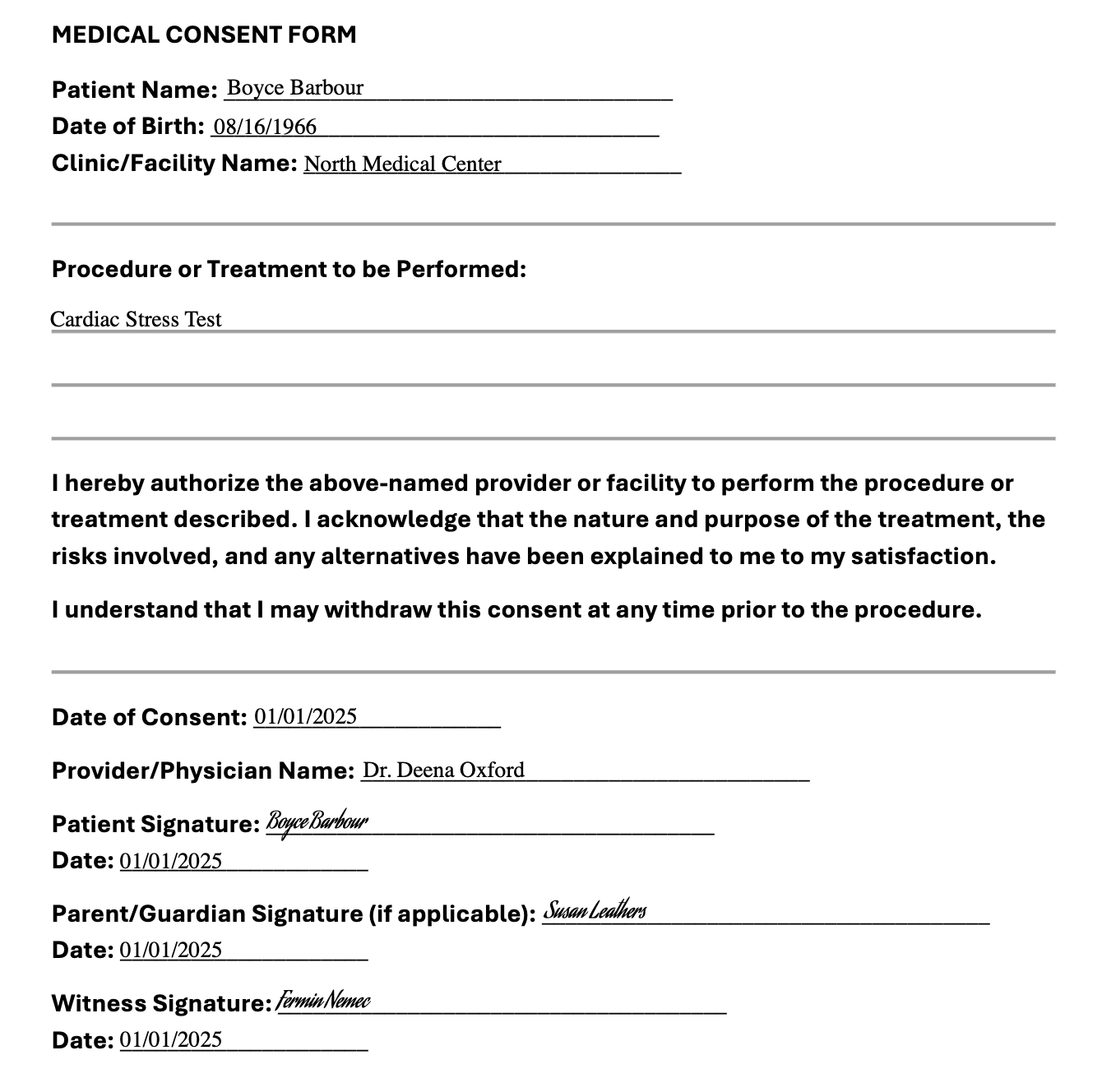
Industry-Based Use Case Examples
UDA-Generate supports use cases in banking, insurance, and healthcare document workflows.
Banking and Financial
| Category | Example UDA-Generate Applications | Purpose / Benefit |
|---|---|---|
| Loan Applications | Loan forms, income statements, pay stubs | Test digital loan workflows |
| Account Statements | Bank statements with realistic transactions | Validate data extraction and parsing |
| Customer Onboarding | Identification documents, address proofs, consent forms | Simulate identity verification for onboarding |
| Reports / Confirmations | Investment reports, trade confirmations, and summaries | QA testing and AI modeling |
| Invoices and Receipts | Varied invoice formats | Test OCR and payment automation systems |
Insurance
| Category | Example UDA-Generate Applications | Purpose / Benefit |
|---|---|---|
| Claims Processing | Claim forms, damage reports, policy documents | Workflow and AI model testing |
| Policy Management | Policy PDFs for renewals and templates | Validate consistency and personalization |
| Fraud Detection | Realistic but fake or altered claims |
Train systems to detect document fraud |
Healthcare
| Category | Example UDA-Generate Applications | Purpose / Benefit |
|---|---|---|
| Patient Records | Medical reports, discharge summaries, and lab results | Safe testing and AI training |
| Billing and Invoice | Claims, Explanation of Benefits (EOBs), Invoices | Validate billing workflows |
| Clinical Trials | Consent forms, trial reports, visit notes | Support validation and compliance |
| Regulatory Reporting | HIPAA/FDA or audit-ready reports | Test compliance processes |
| Patient Communications | Appointment summaries, reminders, and discharge letters | QA for communication workflows |
PDF Support Guidelines
To ensure optimal template creation and synthetic data generation, please review the following requirements and current limitations:
| Category | Guideline | Details / Notes |
|---|---|---|
| Supported Formats | Digital PDFs only | Scanned, or image-based PDFs, are not currently supported. |
| File Structure | One document per template | Do not combine multiple PDFs into one file. |
| PDF Version | 1.7 or newer recommended | Ensures the best compatibility. |
| Language | English content only | Other languages are not supported at this time. |
| Fonts | Standard fonts | Custom or unusual fonts may cause rendering and display issues and require additional support. |
| Password Protection | Remove all passwords | Protected PDFs cannot be processed. |
| Security Settings | Avoid watermarks, copy protection, or editing restrictions | Such files may not process correctly |
| Interactive Elements | Not supported | Embedded videos, audio, or form fields are excluded. |
| Complex Visual Elements | Charts and graphs are preserved visually | Dynamic synthetic data is not supported in visual elements. |
| Page Count | Up to 40 pages recommended | Larger files may require extended processing time. |
| Data Generation | Only the synthetic data that Generators can generate is supported | No other type of data is supported at this time. |
Best Practices
- Use a sample PDF that matches the production layout.
- Version templates so that the same is reflected in Project Versions
- Use documents with clear text and standard layouts.
- Please submit clean, well-formatted digital PDFs for the best results.
- Split merged fields in the PDF (e.g., "Name/Date").
- Avoid unnecessary graphics, watermarks, or logos.
- Ensure all fonts are embedded or use standard system fonts.
- Remove any security restrictions before uploading.
- Use realistic sample data in the source PDF.
- Validate modeled data for accuracy (e.g., names, types, and data patterns).
- Verify by generating a small batch of PDFs.
Dependencies
- Java version 8, 11, 17, 21, 24
- Nodejs version 20.18.0 - Covered in the environment setup article
Prerequisites
-
UDA - Import from PDF must be enabled for the organization.
- Reach out to support@genrocket.com to enable this feature
-
GenRocket Runtime must be installed and properly configured.
- See GenRocket Runtime Overview for more information.
-
Initial Environment Setup Steps must be completed.
- See the UDA-Generate Environment Initial Setup Steps for more information.
- Follow the provided PDF Support Guidelines and Best Practices discussed earlier in this article.
PDF Creation Workflow
- Step 1 - Ensure all prerequisites listed above are complete before continuing.
- Step 2 - Use the Import the PDF option to choose and upload the source PDF file.
- Step 3 - Use the Template Editor to make configuration changes to the template before exporting.
- Step 4 - Make changes in the Project to further customize the type of data that is generated (e.g., Generator Tuning, G-Case Creation)
- Step 5 - Change the gGrRoot Domain loopCount or use G-Cases to generate different volumes (recommended).
-
Step 6 - Check GrRoot Domain List Selection for the Config File (click here for a full walkthrough)
- Select the Configuration Management tab, then the Modify Elements (Hamburger) icon.
- Select the Edit icon for the GrRoot Domain.
- Select List When More Than One and Save
-
Step 7 - Download the required files for PDF Document generation and move them to the appropriate directory location.
- G-Case or G-Case Library (Optional)
- Scenario Chain (contains Scenarios for all Domains)
- Config file as configured in the JSONSegmentMergeReceiver. Place in the Config folder within the specified output directory.
- PDF Config File - Download from the PDFTemplateReceiver configuration and place in the same location as the Config file above.
- PDF Template - Download from the PDFTemplateReceiver configuration and place in the appropriate folder, as specified in the receiver. The default folder name is 'templates'.
- Step 8 - Generate data at the command line with genrocket -r or use another method (e.g., API call).
Additional Information
| Article Link | Description |
|---|---|
| UDA-Generate FAQs | See common questions and answers for UDA-Generate. |
| UDA-Generate - Environment Initial Setup Steps | Learn the steps you need to complete before you can begin using UDA-Generate. |
| UDA-Generate Template Editor - Import & Customize PDF for Project Setup | Learn how to import a PDF source file and customize the created template in the editor before exporting it for project setup. |
| UDA-Generate PDF Template - How to Make Text Look Like a Signature | See step-by-step instructions for setting up a text variable to appear as different signatures within generated PDFs. |
| UDAGenerate - Bank Statement PDF Generation Walkthrough | See a step-by-step example from importing a source Bank Statement PDF to generating synthetic bank statements. |
| UDA-Generate PDF Generation - Healthcare Consent Form with Dynamic Signature Fonts | See a step-by-step example for importing a Medical Consent Form, customizing the PDF Template, and generating forms containing synthetic data with multiple signatures (e.g., patient, parent, witness). |
Article Feedback: Was this helpful?
Give feedback